This article describes how to update PST files that already exist in MS Outlook, by converting e-mail messages from EML to PST and adding them with the help of EML to PST Converting tool.
Update existing PST file
We often use multiple mail programs – at work and at home, on our desktops and on our laptops – but sometimes it is necessary to combine all of our electronic correspondence in one email client. It is possible to perform this task using MS Outlook, by creating a separate Personal Folders file (.pst) for each type of electronic correspondence (for example, business and personal) and then performing a PST import of the additional .pst files. The EML to PST Converter utility will help you to create a new .pst file from e-mails transferred from Apple Mail, Windows Mail, Outlook Express or Thunderbird that are saved in .eml format, which can then be processed with a simple e-mail-PST conversion.
Adding new emails to PST file
But over time it becomes necessary to update PST files by adding new e-mail messages to them through an e-mail-PST conversion. This feature is also included in EML to PST Converter. Before starting to work with the .pst file, you will need an .eml copy of the e-mail messages which have been transferred, for example, from Mozilla Thunderbird’s .mbox database to go from EML to PST.
Next launch EML to PST Converter and on the first page of the wizard choose the option “Use default Outlook storage” (update the current .pst file selected by default in the Outlook settings) or “Select orphaned PST file“(select the necessary .pst file in a dialog window).
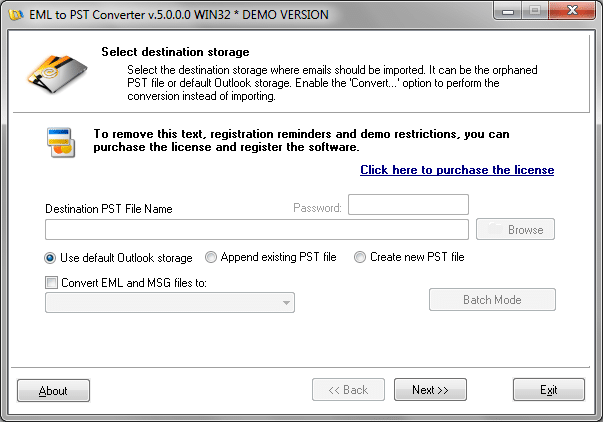
The latter option is recommended if you use more than one Personal Folders file. If the .pst file you have chosen is password-protected, then you should enter this password in the Password field. Afterwards, specify the .eml input files and wait for the EML to PST conversion for use with MS Outlook to finish.
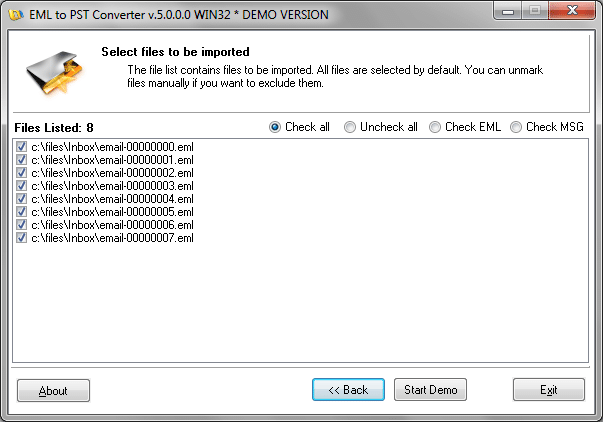
You should pay special attention to the directory tree containing the .eml input files. The EML to PST Convertor recognizes the directory structure and transfers it into Outlook in the given form. Therefore, if the Windows directory name is the same as the name of the analogous folder in Outlook, then the .eml input files will go through a PST import and will be automatically placed in the corresponding directory.
Also note that it is possible to work similarly with .msg files, whether you decide to import MSG files or add them to a .pst file, converting them from MSG to PST.